
Learning Paths
Last Updated: April 1, 2026 at 12:30
OpenID Connect Explained
The identity layer built on OAuth, the difference between ID tokens and access tokens, and how real-world login flows actually work
OpenID Connect is the identity layer built on top of OAuth 2.0, designed to answer a question OAuth was never meant to solve: who the user actually is. This article walks through the real-world login flow, explaining how ID tokens prove identity while access tokens grant permission. It uncovers the subtle security mechanisms—like nonce, token validation, and PKCE—that quietly protect modern authentication systems. By the end, you will not just understand how “Sign in with Google” works, but why it is designed this way
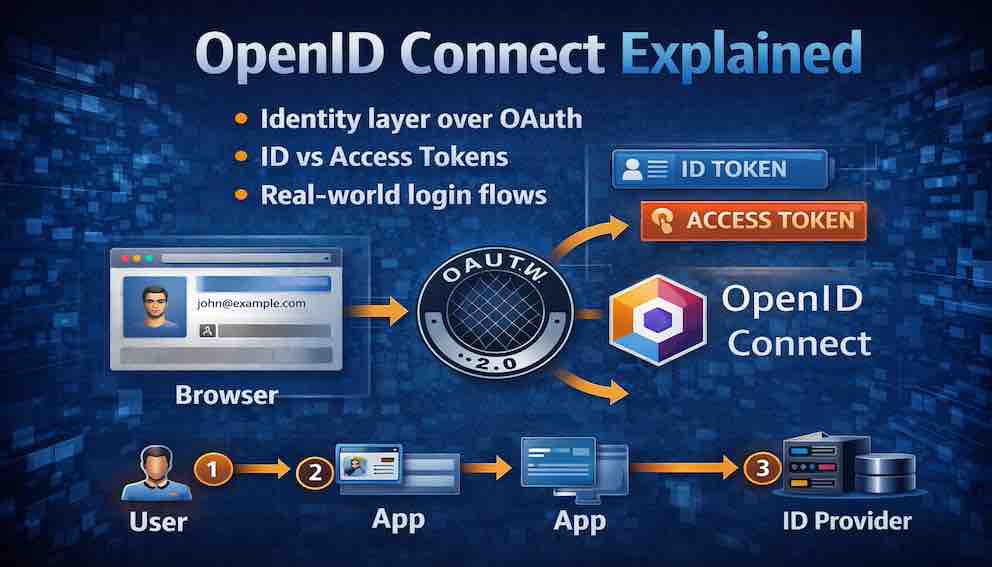
OAuth was designed for authorisation — giving an app permission to access your data. But developers quickly started using it for something it was never built for: authentication. Proving not just that an app has permission, but that a specific person just logged in.
The two things sound similar but they are fundamentally different. An access token tells you that someone with the right permissions made this request. It does not tell you who that person is, when they logged in, or how they proved their identity. Using it as proof of identity is like accepting a car key as proof that you own the car.
OpenID Connect was built to fill that gap. It adds an identity layer on top of OAuth — a standardised way to answer the question: "Who is this person, and how did they just prove it?"
Part One: What OpenID Connect Is
OpenID Connect (OIDC) is an identity layer built on top of OAuth 2.0. It allows clients to verify the identity of a user and obtain basic profile information, in an interoperable and REST-like manner.
In plain language: OAuth handles authorisation — "this app can access your photos." OpenID Connect handles authentication — "this is who the user is, and here is proof."
OAuth tells you what the app user can do. OpenID Connect tells you who the user is.
Why was OpenID Connect created?
Before OIDC, developers kept trying to use OAuth for authentication. They would get an access token, call a userinfo endpoint, and assume the user was authenticated. This worked — poorly. There was no standard for identity information. There was no way to know how the user authenticated. There was no way to log the user out properly.
OpenID Connect standardised all of this. It took the OAuth framework and added exactly what was missing: a proper identity token, standardised claims, and session management.
Today, when you click "Sign in with Google" or "Login with Apple," you are almost certainly using OpenID Connect — even if the button does not say so.
Part Two: ID Tokens vs Access Tokens
This is the most important section in the article. Understanding the distinction between these two tokens is the foundation of everything else.
OpenID Connect introduces a second type of token alongside the familiar OAuth access token. Confusing the two is one of the most common security mistakes developers make.
The ID Token
The ID token is the heart of OpenID Connect. It is a JWT (JSON Web Token) that contains claims about the user's authentication.
- Purpose: Proves who the user is and how they authenticated
- Format: Always a JWT — self-contained and cryptographically signed
- Lifetime: Short (minutes to hours)
- Who validates it: Your client application
- What it contains: User ID, authentication time, authentication method, client ID, issuer
Think of the ID token as a digital driver's licence. It contains verified information about the user. It is signed by the identity provider, so you know it has not been tampered with. And it tells you not just who the user is, but when and how they proved their identity.
Here is what a decoded ID token looks like:
Let us break down the important claims:
iss (issuer) — Who issued the token. This should match the identity provider you expect, such as https://accounts.google.com. Always validate this to prevent attacks using tokens from fake identity providers.
sub (subject) — The unique, stable identifier for the user within the identity provider's system. This is the value you should store in your database as the user's primary identifier — not their email. Email addresses can change; sub never does. It is also scoped to the issuer, so the same user will have different sub values at Google versus Microsoft.
aud (audience) — Your client ID. This proves the token was issued for your application. Always validate it matches your client ID.
exp (expiration) — When the token expires. Never accept an expired token.
iat (issued at) — When the token was issued. Useful for checking if the token is suspiciously old.
auth_time — The time when the user last actively authenticated. This is different from iat. If your application requires a recent login before a sensitive action, check auth_time, not iat.
amr (authentication methods reference) — How the user authenticated. If you require MFA, check that amr contains mfa. If it does not, the user did not use two-factor authentication for this login, and you can prompt them to step up.
nonce — A random value you generated and sent in the initial request. Used to prevent replay attacks (covered in detail in Part Four).
email and name — Standardised profile claims. OpenID Connect defines a set of standard claims so applications know what to expect.
The Access Token
The access token is the familiar token from OAuth. It is used to call APIs on behalf of the user.
- Purpose: Authorises access to resources and APIs
- Format: Can be a JWT or an opaque random string
- Lifetime: Short (minutes to hours)
- Who validates it: The resource server (your API)
- What it contains: Scopes (permissions), client information, user identifier
The access token does not tell you who the user is in any meaningful way. It tells you that the client has permission to perform certain actions. Your API checks the scopes in the access token to decide whether to allow or deny the request.
The Rule You Must Remember
Use the ID token to prove who the user is. Use the access token to prove the app has permission to do something.
When a user logs in through OpenID Connect, your application receives both tokens:
The ID token tells you who the user is. You validate it, extract the user's identity, and create a session. This is your authentication.
The access token lets you call APIs on behalf of the user. You send it to your resource server when you need to fetch or update data. This is your authorisation.
Never use an access token as proof of identity. An access token can be stolen and used without any involvement from the user. Never use an ID token as an API credential. The ID token does not contain scopes, and resource servers are not designed to validate them.
They serve different purposes. Use each for what it was designed to do. The access token is read and validated by the resource server — your API. The ID token is read and validated by the client application — your frontend or backend that handled the login. These are different systems with different needs. Mixing identity claims into the access token means your API has to carry information it doesn't need, and your client has to parse a token that wasn't designed for it.
Part Three: How to Validate an ID Token
Receiving an ID token is not enough. If you skip validation, an attacker can forge a fake ID token and impersonate any user.
Here is the step-by-step validation process your application must perform every time it receives an ID token.
Step 1: Retrieve the Identity Provider's Public Keys
The ID token is signed by the identity provider. To verify the signature, you need the provider's public keys. Most identity providers publish a JWKS (JSON Web Key Set) endpoint. You can find it through the provider's discovery endpoint:
This returns a JSON document with URLs for all endpoints you need, including jwks_uri. Fetch the public keys from that endpoint and cache them — they change infrequently.
Step 2: Verify the Signature
Use the public key to verify the ID token's signature. Most JWT libraries handle this for you — provide the token and the JWKS endpoint, and the library fetches the correct key and validates the signature. If the signature is invalid, reject the token immediately and do not inspect its contents.
Step 3: Validate the Issuer (iss)
Check that the iss claim matches exactly the identity provider you expect. For Google, it must be https://accounts.google.com. Maintain a whitelist of trusted issuers.
Step 4: Validate the Audience (aud)
Check that the aud claim matches your application's client ID. This proves the token was issued for your application, not someone else's. If your application has multiple client IDs, the aud claim may be an array — ensure your client ID appears in it.
Step 5: Validate the Expiration (exp)
Check that the current time is before the exp claim. Never accept an expired token, even by a few seconds.
Step 6: Validate the Issued At (iat)
Check that the iat claim is not in the future. This protects against tokens with forged timestamps.
Step 7: Validate the Nonce
If you included a nonce in your initial authorisation request (you should), verify that the nonce claim in the ID token matches the value you stored. This prevents replay attacks — covered in detail in the next section.
Step 8: Validate the Authorised Party (azp) — If Present
If the ID token contains an azp (authorised party) claim and the aud claim has multiple values, verify that azp matches your client ID. This is uncommon but handles cases where the token was issued for a different client within the same ecosystem. Do not expect to see this claim in most implementations.
Validation Summary
In order: verify the signature using the provider's public key, then check iss, aud, exp, iat, nonce, and azp if present. A token that fails any of these checks must be rejected.
Note: Most readers building real applications will use Spring Security, Spring Authorization Server, Nimbus JOSE, or a similar library rather than implementing validation from scratch. The value of understanding the steps is knowing what the framework is doing on your behalf — and knowing what gaps remain yours to fill.
Part Four: The Nonce — Preventing Replay Attacks
The nonce prevents replay attacks, where an attacker captures a valid ID token and tries to use it again later or in a different context.
How it works:
When you send the user to the authorisation server, you generate a random, unguessable value. You store this value temporarily in the user's session or a secure cookie. You include it in the authorisation request:
The authorisation server embeds that same nonce inside the ID token as a claim. When your application receives the ID token, it checks that the nonce in the token matches the value it stored. If they do not match, the token is rejected.
Why this matters:
Suppose your application logs outgoing requests during debugging, and an ID token ends up in a log file. Or a token is leaked through a browser history, a referrer header, or a compromised device. The attacker now has a valid, correctly signed ID token — but they were not the one who authenticated. They cannot get a new one because they do not have the user's password.
Without a nonce, your application has no way to distinguish between the legitimate login that produced this token and the attacker replaying it. The token is valid, the signature checks out, the issuer is correct. Your application accepts it.
With a nonce, the attack fails. The nonce was generated for that specific login attempt and stored in that specific user's session. The attacker has the token but not the session. The values do not match, and the token is rejected.
Part Five: Where to Store Tokens — A Practical Warning
This trips up many developers, especially those building single-page applications.
For confidential clients (backend web apps): Tokens stay on the server. The browser only receives a session cookie. The tokens themselves are never exposed to JavaScript. This is the most secure approach.
For public clients (SPAs, mobile apps): You cannot use a server-side session in the same way. The common mistake is storing tokens in localStorage. Do not. localStorage is accessible to any JavaScript running on the page, including third-party scripts and XSS payloads. If an attacker injects a script into your page, they can read every token you have stored.
The safer option for SPAs is to store tokens in memory (a JavaScript variable) and use an HttpOnly cookie for the refresh token, handled by a lightweight backend endpoint (the BFF — Backend for Frontend pattern). Tokens in memory are lost on page refresh, but this is a worthwhile trade-off for most applications.
For mobile apps, use the platform's secure storage: Keychain on iOS, Keystore on Android.
Part Six: How a Real Login Flow Works, Step by Step
OpenID Connect builds directly on OAuth's Authorisation Code Flow. Here is a complete, real-world login flow with all the security pieces in place.
Step 1: The User Clicks "Sign in with Google"
Your application redirects the user to Google's authorisation endpoint:
response_type=code requests the Authorisation Code Flow. scope=openid is essential — without it, you are doing plain OAuth, not OpenID Connect. state prevents CSRF on the redirect. nonce prevents replay attacks on the ID token.
Step 2: The User Authenticates and Consents
Google checks whether the user is already logged in. If not, it presents a login screen. It then shows a consent screen listing the permissions your application requested. The user clicks Allow.
Step 3: Google Returns an Authorisation Code
Google redirects back to your redirect_uri with a short-lived authorisation code:
Your application verifies the state parameter matches what it sent. This confirms the redirect came from your request, not an attacker.
Step 4: Your Backend Exchanges the Code for Tokens
Your server makes a direct, back-channel request to Google's token endpoint:
This exchange happens server-to-server. The authorisation code is never exposed to the browser after this point, which is the key security property of the Authorisation Code Flow.
Step 5: Google Returns Tokens
Google responds with:
Your application now has an access token for calling APIs, a refresh token for obtaining new access tokens, and an ID token — the proof of authentication.
Step 6: Your Application Validates the ID Token
Your application performs all the validation steps from Part Three: verifies the signature, checks iss, aud, exp, iat, and confirms the nonce matches.
Step 7: Your Application Creates a Session
If all validation passes, your application extracts the user's stable identity from the sub claim. It creates a session — typically by setting a secure, HttpOnly cookie — and the user is logged in.
Step 8 (Optional): Fetch Additional Profile Information
If you need profile details not in the ID token, call the UserInfo endpoint with the access token:
This returns standardised claims like email, name, picture, and locale.
Part Seven: Refresh Tokens and Token Rotation
When an access token expires, your application needs a new one. That is what the refresh token is for. Rather than sending the user through the login flow again, your application exchanges the refresh token at the token endpoint for a new access token.
For public clients (SPAs, mobile apps), refresh token rotation is a critical security practice. With rotation, every time your application uses a refresh token, the identity provider issues a new refresh token and invalidates the old one. If an attacker steals a refresh token and tries to use it after your application has already rotated it, the identity provider detects the replay and invalidates the entire token family — logging the user out across all sessions.
Always enable refresh token rotation when your identity provider supports it, and treat an unexpected rotation invalidation as a potential security incident.
Part Eight: Public vs Confidential Clients
OpenID Connect distinguishes between two types of clients, and understanding the difference affects how you handle secrets and whether you need PKCE.
Confidential clients are applications that can securely store a secret — typically web applications with a backend server. The client secret is stored in environment variables on the server and is never exposed to the browser. These clients authenticate at the token endpoint using their client_secret.
Public clients are applications where code runs on the user's device: mobile apps, single-page applications, desktop apps, CLI tools. Any secret embedded in a public client can be extracted. Do not put a client_secret in a React app or a mobile binary.
PKCE for Public Clients
PKCE (Proof Key for Code Exchange, pronounced "pixie") is required for all public clients. Here is how it works:
Your application generates a random code_verifier. It creates a code_challenge by hashing the verifier with SHA-256. The code_challenge goes in the initial authorisation request. When exchanging the authorisation code for tokens, your application sends the original code_verifier. The authorisation server verifies the hash matches.
This means that even if an attacker intercepts the authorisation code, they cannot exchange it — they do not have the code_verifier that your application generated.
PKCE is also recommended for confidential clients in OAuth 2.1. Use it everywhere.
Part Nine: Scopes vs Claims — A Distinction Worth Understanding
Scopes and claims are related but distinct, and developers often conflate them.
Scopes are permissions you request in the authorisation request. They are coarse-grained. When you request scope=openid email profile, you are asking for permission to receive certain categories of information.
Claims are the actual pieces of information returned in the ID token or UserInfo endpoint. They are fine-grained. The email scope grants access to the email and email_verified claims. The profile scope grants access to name, given_name, family_name, picture, and a handful of others.
Requesting a scope does not guarantee you will receive every associated claim. Identity providers may omit claims if the user has not provided that information, or if their privacy settings restrict it. Always handle missing claims gracefully.
Part Ten: Session Management and Logout
Logging out is more complex in OpenID Connect than it appears.
Application-Level Logout
The first step is what you already know: delete the session in your application. The user is logged out of your app — but they remain logged in at the identity provider. If they click "Sign in with Google" again immediately, they will be automatically authenticated without entering their password.
Identity Provider Logout
To fully log the user out, you must also redirect them to the identity provider's end_session_endpoint:
The id_token_hint tells the identity provider which session to end. The identity provider logs the user out globally and redirects them back to your post_logout_redirect_uri.
If you skip this step, anyone with access to the same browser can click "Sign in with Google" and be immediately and silently authenticated as the previous user.
Front-Channel vs Back-Channel Logout
When a user logs out, there is a complication that is easy to miss. Modern applications often use a single identity provider — Google or Okta for example — to authenticate users across multiple applications. A user might be logged into their email, their project management tool, and their HR system, all through the same identity provider.
When that user clicks logout in one application, the others don't automatically know. Each application has its own session, and those sessions remain active until something terminates them. If you only delete the session in the application the user logged out of, the other sessions remain open. Anyone with access to that device can visit the other applications and walk straight in.
OpenID Connect defines two mechanisms for propagating logout across all active sessions:
Front-channel logout uses browser redirects. The identity provider loads each application's logout URI in an iframe, triggering logout in each one. It is simple to implement but unreliable — if the user's browser blocks third-party cookies or an application is temporarily unreachable, some sessions may not be terminated.
Back-channel logout uses direct server-to-server communication. The identity provider sends a signed logout token directly to each application's registered endpoint, bypassing the browser entirely. It is more complex to implement but far more reliable. For applications where security matters, prefer this approach.
Part Eleven: The Discovery Endpoint
Instead of hardcoding URLs for authorisation, token, and UserInfo endpoints, OpenID Connect provides a discovery endpoint at a predictable location:
For Google: https://accounts.google.com/.well-known/openid-configuration
This returns a JSON document with everything your application needs:
Fetch this configuration at application startup and cache it. If the identity provider changes its endpoint URLs, your application adapts automatically without a code change.
Part Twelve: Security Attacks Specific to OIDC
Even with OpenID Connect, there are specific attacks you must protect against.
ID Token Injection — An attacker presents a forged ID token with a fake signature. If your application does not validate the signature properly, the attacker impersonates any user. Prevention: always validate the signature using the identity provider's published public keys. Never inspect the claims of a token before validating its signature.
Mix-Up Attacks — A mix-up attack occurs when your application works with multiple identity providers that you trust—for example, both Google and Microsoft—and an attacker tricks your application into accepting an ID token from the wrong provider. The attacker might get a valid token from Microsoft (perhaps for their own account) and present it to your application during a Google login flow. Since the token is properly signed by Microsoft, a provider you trust, signature validation alone would pass. But your application expects a Google token for that login attempt. If you do not check the iss (issuer) claim, you might accept the Microsoft token and associate it with the wrong user, potentially linking the attacker's account to the victim's session. The fix is simple: always validate the iss claim against a strict whitelist of trusted issuers, and ensure it matches the identity provider you expect for that specific login flow.
Token Substitution — An attacker substitutes an access token where an ID token is expected. If your application treats them interchangeably, the attacker can bypass authentication checks. Prevention: keep your token handling strictly separated. The code that validates an ID token should never be called with an access token, and vice versa.
Replay Attacks — An attacker captures a valid ID token and presents it to your application again. Prevention: use the nonce parameter as described in Part Four.
Client Impersonation — An attacker registers a client with the identity provider using a similar name to your application, tricks users into authorising their client, and then presents the resulting token to your application. Prevention: validate the aud claim. The attacker's client ID will not match yours, and your application will reject the token.
Part Thirteen: OIDC vs SAML
SAML (Security Assertion Markup Language) is the older federated identity standard. You will encounter it in enterprise environments.
SAML is XML-based, verbose, and complex to implement. OpenID Connect is RESTful, JSON-based, and considerably simpler. SAML was designed for browser-based enterprise SSO in the early 2000s. OpenID Connect was designed for modern web applications, mobile apps, and APIs.
If you are building a new application, use OpenID Connect. It is better suited for APIs and mobile, is supported by all major identity providers, and is far easier to implement correctly.
SAML remains relevant for enterprise integrations where legacy systems require it, and in regulated industries like government and education where it is entrenched. If you need to integrate with a corporate identity provider and they only speak SAML, you will need to support it — but you do not need to choose it.
Part Fourteen: Why OpenID Connect Matters
You might be wondering why you should use OpenID Connect instead of building your own authentication system.
You outsource authentication to experts. Storing passwords is a serious responsibility. With OpenID Connect, you never store passwords. The identity provider handles password storage and hashing, password reset flows, MFA enrollment and verification, breach monitoring, and credential stuffing detection.
Your users get single sign-on. Users do not want to create another account. They already have accounts with Google, Microsoft, Apple, and their employer. OpenID Connect lets them use those existing identities.
You reduce your security liability. Every password you store is a liability. Every password reset flow is a potential vulnerability. Every MFA implementation is something that can break or be bypassed. OpenID Connect moves all of this to the identity provider.
It is what users expect. "Sign in with Google" is a pattern users trust. It is also a signal that your application takes security seriously.
Glossary
OP (OpenID Provider) — The identity provider that authenticates users and issues ID tokens. Examples: Google, Microsoft, Okta.
RP (Relying Party) — Your application. The service that relies on the OP to authenticate users.
End-User — The person logging in.
ID Token — The JWT containing claims about the user's authentication. Your proof of identity.
Claims — Pieces of information about the user embedded in a token or returned from the UserInfo endpoint. Examples: sub, email, name.
Nonce — A random value used to prevent replay attacks on the ID token.
sub (Subject) — The stable, unique identifier for the user at a given identity provider. Use this as your primary key, not email.
UserInfo Endpoint — A protected API that returns identity claims about the user. Called with the access token.
Discovery Endpoint — /.well-known/openid-configuration — returns all endpoints and configuration details for an identity provider.
JWKS — JSON Web Key Set. The public keys used to verify ID token signatures.
PKCE — Proof Key for Code Exchange. A mechanism that protects the authorisation code exchange for public clients.
BFF — Backend for Frontend. A lightweight server-side layer that handles token exchange and storage on behalf of a single-page application.
What You Should Take Away
OpenID Connect is the identity layer built on top of OAuth. It was created specifically to solve the problem of using OAuth for authentication — something developers were doing badly before OIDC existed.
When you need to authenticate users, use OpenID Connect. Validate ID tokens properly — every claim, every time. Store sub as your primary user identifier. Use nonce and state in every flow. Handle logout at the identity provider level, not just in your application.
And remember: the ID token proves who the user is. The access token proves the app has permission to do something. They are not interchangeable. Use each for what it was designed to do.
About N Sharma
Lead Architect at StackAndSystemN Sharma is a technologist with over 28 years of experience in software engineering, system architecture, and technology consulting. He holds a Bachelor’s degree in Engineering, a DBF, and an MBA. His work focuses on research-driven technology education—explaining software architecture, system design, and development practices through structured tutorials designed to help engineers build reliable, scalable systems.
Disclaimer
This article is for educational purposes only. Assistance from AI-powered generative tools was taken to format and improve language flow. While we strive for accuracy, this content may contain errors or omissions and should be independently verified.